The AR menu at the table: a short guide for waiters
A 3D menu with augmented reality works best when the floor team uses it. Guests who have never seen a dish placed virtually on their table are curious, but sometimes hesitate or don’t know where to tap. This guide is for waiters: what to say, what to show and how to help, in under a minute per table.
What every waiter should know
- the menu opens by scanning the QR code with the phone camera, no app needed;
- dishes with a 3D model carry a “3D” label and can be rotated with a finger;
- the “See it on the table (AR)” button places the dish at real size on the table through the camera;
- AR works on iPhone (from Safari) and on Android phones compatible with ARCore;
- if AR doesn’t start, the 3D model can still be rotated on screen.
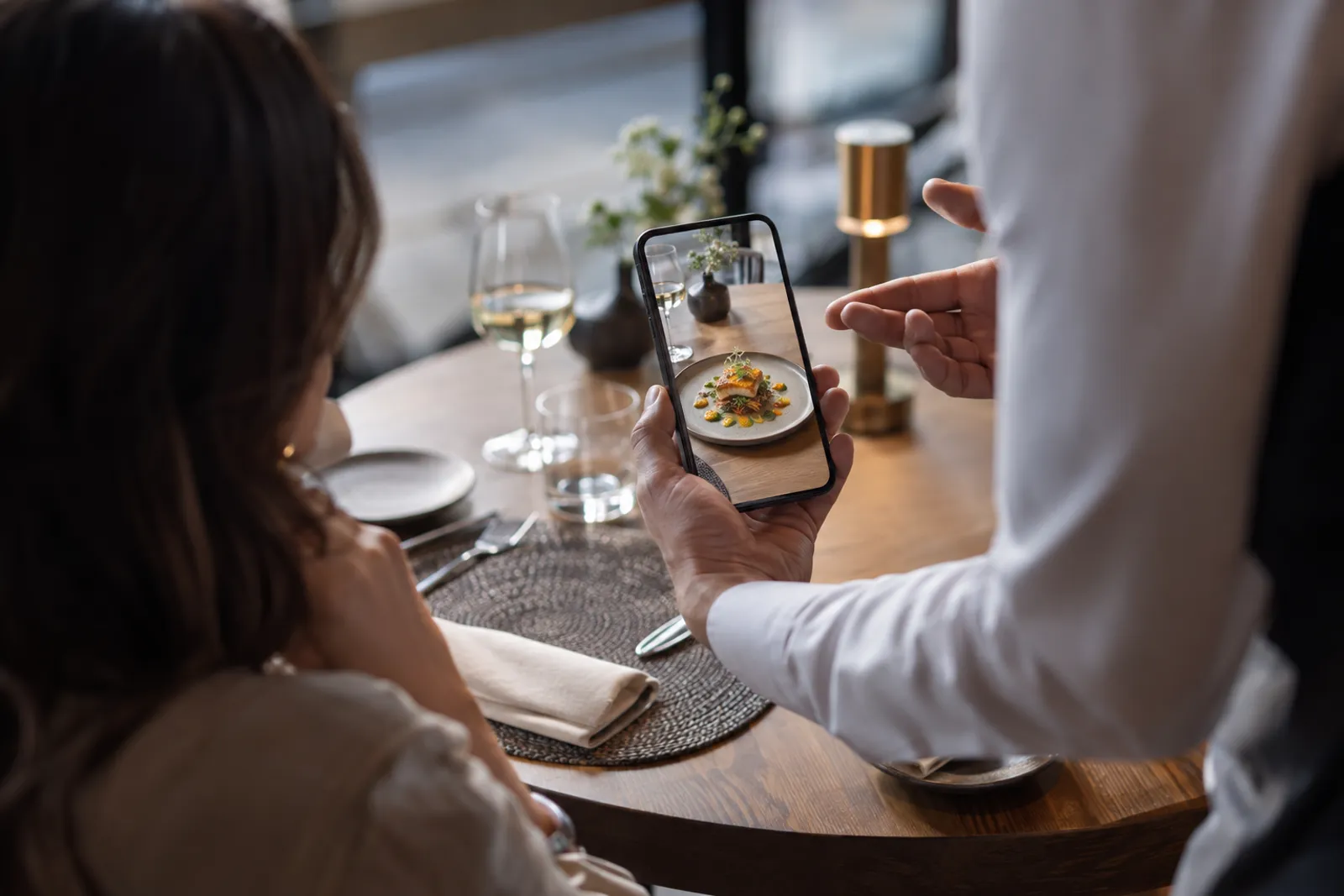
What to say at the table
One short sentence, said naturally when you bring water or when guests sit down, is enough. A few options:
- “The menu is on the code on the table — dishes with the 3D label can be seen right here on the table, at real size.”
- “If you’re not sure how big the platter is, tap ‘See it on the table’ and it appears here, next to your glasses.”
- “The house dessert is in 3D — worth a look before you choose.”
Don’t push. Some guests want the printed menu or your direct recommendation, and that’s perfectly fine. The goal is that everyone knows the option exists.
How to help a guest who gets stuck
| Problem | What you do |
|---|---|
| The camera doesn’t read the code | Bring the phone to 20–30 cm with the whole code in frame; check for shadows or glare |
| The menu loads slowly | Check the signal; offer the Wi-Fi password if the venue has a guest network |
| The AR button doesn’t appear | The phone may not be compatible; show how to rotate the 3D model on screen |
| The dish doesn’t settle on the table | Ask the guest to move the phone slowly over the table so the surface is detected |
| The dish looks too big or small | Explain it’s at real size; it can be moved and rotated with fingers |
From 3D to recommendation
A 3D model is a good selling tool for waiters. Instead of describing a dish in words, you show it. It works best for expensive or unfamiliar dishes where the guest hesitates: “Look how big the portion is — it’s enough for two.”
The dishes the restaurant wants to recommend are usually the ones in 3D (see which dishes to put in 3D). Ask your manager which are the star dishes of the week and use them in your recommendations.
Table ordering
If the restaurant has table ordering turned on, guests can send their order from the menu. It appears in the dashboard with the table number. The waiter still matters: confirm the order, answer questions, suggest drinks or desserts and check everything is fine. Sold-out items can’t be ordered, and outside kitchen hours orders are paused automatically.
- check the dashboard regularly or when you hear the alert;
- let the guest know you’ve seen the order, especially on their first table order;
- if an item runs out, tell whoever updates the menu.
Different guests, different approaches
- Families with children: AR is often entertainment at the table; show them the dessert in 3D.
- Tourists: the menu can open in their language, and 3D helps with unfamiliar traditional dishes.
- Guests in a hurry: point straight to the categories and recommended dishes.
- Guests who prefer paper: offer the printed menu without comment.
Training the team in 15 minutes
- Each waiter scans the code with their own phone and opens three 3D dishes.
- Each one tries “See it on the table” on a real table in the venue.
- Practise the intro sentences in pairs.
- Go through the problems-and-solutions table.
- Agree who marks items as sold out during service.
Technical details about augmented reality are in the AR menu guide, and how table codes work in the QR menu guide.
What not to do
- don’t take a guest’s phone out of their hand without asking; guide them verbally or with the venue phone;
- don’t push if a guest says they prefer the printed menu;
- don’t promise a dish looks “exactly” like the model if the kitchen recently changed the plating — tell the manager so the scan is redone;
- don’t ignore dashboard orders at busy times; agree who keeps an eye on them.
Common questions on the floor
A few questions come up often. “Is that really the portion?” — yes, scanned models show the real dish at real size. “Does it work offline?” — the menu needs a connection, so offer the venue Wi-Fi if the signal is weak. “Can I see allergens?” — yes, on every item in the menu. Short, confident answers reassure guests more than technical explanations.
Frequently asked questions
Do guests need to install an app for AR?
No. Augmented reality starts from the browser: on iPhone through Safari, on Android on phones compatible with ARCore.
What if the guest’s phone doesn’t support AR?
The 3D model can still be rotated and zoomed on screen, even without AR. You can also use a venue phone.
Does table ordering replace the waiter?
No. It shortens the wait to order, but the waiter confirms, recommends and looks after the table.
Read next
AR menu (augmented reality): how guests see the dish on their table
How an augmented reality menu works: which phones support it, how the dish appears at real size on the table, and what a restaurant needs to prepare.
Read → 5 October 2026 · 6 min readQR code menu for restaurants: a complete guide (printing, placement, tables and ordering)
How to make a QR menu that actually gets used: which code to choose (menu or table), how big to print it, where to put it, how to test it and how to add table ordering.
Read → 15 October 2026 · 6 min readWhich dishes to put in 3D on your menu (and which to keep as photo or text)
How to choose the dishes that deserve a 3D model in your digital menu: practical criteria, examples by venue type and which items can stay as photo or text.
Read →Try it on your own dish
The first 3D dish costs €1 and includes 30 days of Menu3D.