How to update your digital menu: sold-out items, seasonal menus and new prices
The biggest advantage of a digital menu isn’t its looks; it’s that it can always be correct. A dish that runs out at 2 p.m., a supplier price change or a new autumn menu are handled from the dashboard in minutes, and the QR code on the table stays the same. Here is how to organise updates so they never become a chore.
Sold-out items
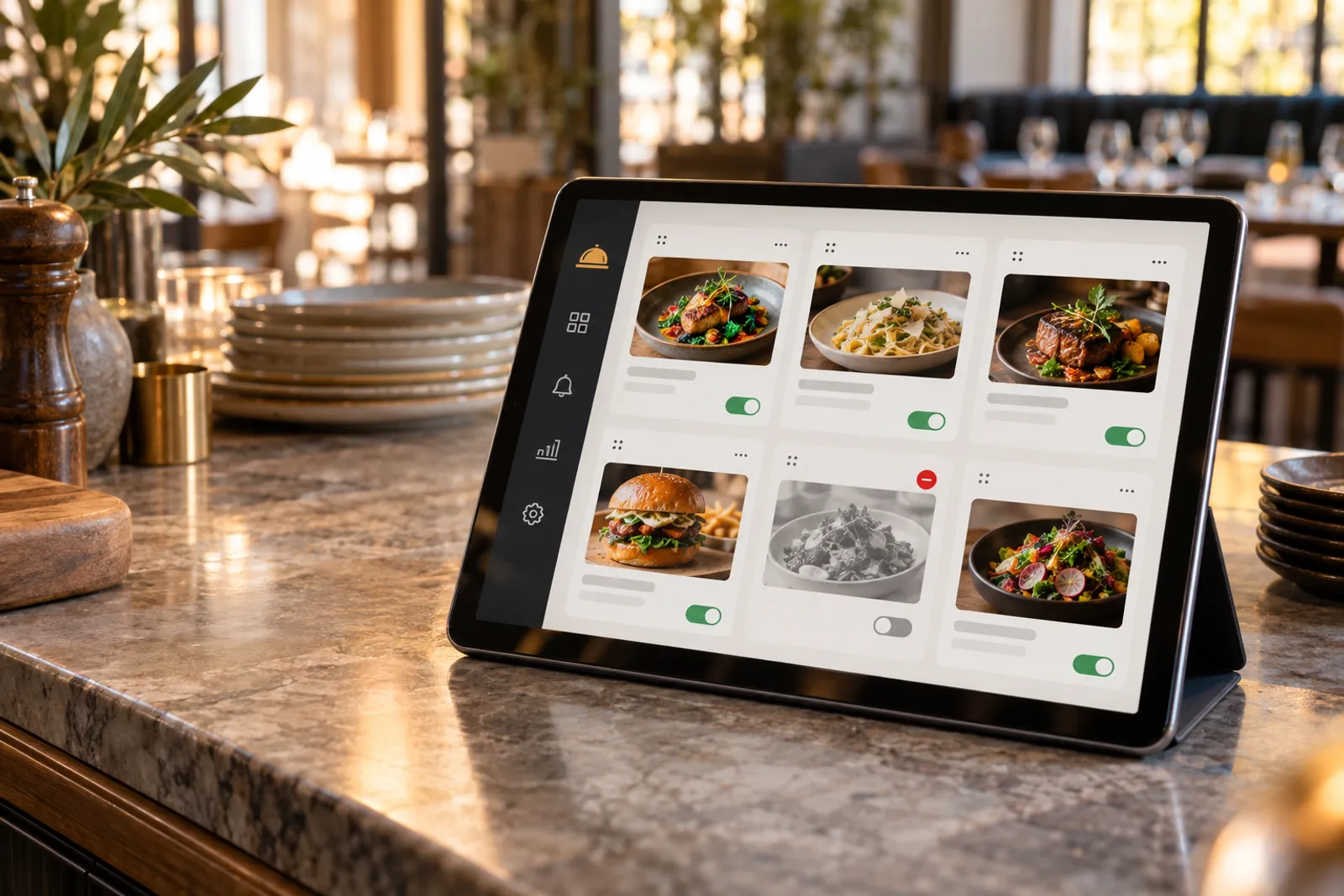
When a dish runs out during service, you mark it as sold out in the dashboard. Guests still see it on the menu, labelled “Sold out”, but can’t order it from the table. That’s better than hiding it: guests learn it exists and may come back for it.
- decide who marks items as sold out (the head chef or the floor manager);
- make it a routine gesture, as soon as the kitchen calls it;
- at closing or in the morning, check which items need reactivating.
Schedules for categories and dishes
Many restaurants have items available only at certain times: breakfast until 11:30, the lunch special at midday, some dishes only in the evening. In Menu3D you can set a schedule for categories and for items. Outside the window, guests see from what time the item is available, and orders for it are stopped automatically.
Kitchen hours work the same way: if the kitchen is closed, the menu still opens for browsing, but table orders are paused and guests see from what time they can order.
New prices
A price change in a digital menu takes seconds, but a few rules save you trouble:
- change prices outside peak hours, not in the middle of service;
- keep the same values on any spare printed menus;
- after updating, check a few items straight from a phone by scanning a table code;
- note the date of the change — it helps with menu analysis.
The seasonal menu
A seasonal menu usually means a few new dishes and a few that leave temporarily. Prepare them ahead in the dashboard: add the new items with description, price, allergens and translations, then activate them on launch day. Items that leave can be deactivated rather than deleted, so you can reuse them next year.
| When | What you do |
|---|---|
| 2 weeks before | Write descriptions, check allergens, prepare translations |
| 1 week before | Scan the new dishes in 3D from the first test portions |
| Launch day | Activate the new items and move them to the top of their category |
| After 3–4 weeks | Compare sales and adjust positions and descriptions |
Redoing 3D scans
If you change a dish’s presentation — another plate, another side, another portion — the old 3D model no longer matches. Rescan with the new dish and replace the model attached to the item. Guests must get exactly what they saw in the menu; otherwise the 3D model sets the wrong expectations.
If you started with an AI-made model as a preview, the moment a dish becomes stable is a good time for a real scan. The steps are in the guide to 3D scanning with your phone.
Allergens after a recipe change
Any new ingredient can bring a new allergen. Make allergen checks a mandatory step for every recipe change, not just for new items. The list of the 14 allergens and how to display them are explained in the allergens guide.
A ten-minute weekly routine
- Monday morning: check items still marked sold out from the weekend.
- Confirm the daily special and the category schedules for the week.
- Check whether any supplier changed prices and update the affected items.
- Scan the code on a table and browse the menu like a guest, including on mobile data.
When printed code materials wear out — scratched stands, peeling stickers — you can replace them with durable stickers and printed materials; the code stays the same, so nothing changes in the menu.
Who has access to the dashboard
Quick updates only work if it’s clear who makes them. In a small restaurant, usually the manager and the head chef. In a larger one you can split it: the kitchen marks sold-out items, the manager changes prices and the seasonal menu. Write the rules down and keep a list of who has access to the admin account.
A useful rule: any price or recipe change is checked by a second person before it goes live. Typos in prices are rare, but embarrassing in front of guests.
Frequently asked questions
Do I have to reprint QR codes when I change the menu?
No. The code points to the menu address; items, prices and 3D models change from the dashboard, and the code stays the same.
What do guests see for a sold-out item?
The item stays on the menu labelled “Sold out” and can’t be ordered from the table until you reactivate it.
Can I show a breakfast menu only in the morning?
Yes. Set the category schedule; outside the window guests see from what time it’s available and can’t order from it.
Read next
QR code menu for restaurants: a complete guide (printing, placement, tables and ordering)
How to make a QR menu that actually gets used: which code to choose (menu or table), how big to print it, where to put it, how to test it and how to add table ordering.
Read → 5 October 2026 · 6 min readAllergens in a digital menu: the 14 EU allergens and how to show them clearly
The list of the 14 allergens in Regulation (EU) No 1169/2011, how to show them in a digital or QR menu and which mistakes to avoid. A practical guide for restaurants.
Read → 5 October 2026 · 7 min readHow to 3D scan food with your phone: a step-by-step guide
A practical guide to 3D scanning dishes with a phone: light, surface, the three rounds around the plate, common mistakes, and what to do with soups, glass or glossy sauces.
Read →Try it on your own dish
The first 3D dish costs €1 and includes 30 days of Menu3D.