From printed menu to digital menu: the complete switch guide for restaurants
The printed menu won’t vanish overnight, but more and more restaurants are adding or replacing it with a digital menu opened from a QR code. The switch looks simple — “let’s put a PDF online” — and that is exactly why it often goes wrong. This guide takes you through every step, from the dish inventory to the first week with real guests.
Why switch to a digital menu
The first reason is control. A printed menu is hard to change: every new price, every dish removed or added means reprinting or stickers on top. A digital menu is updated from the dashboard in seconds, and guests see the correct version straight away. For restaurants that change their offer often — daily specials, seasonal dishes, sold-out items — the difference shows in the first month.
The second reason is information. On paper you have room for a name, a weight and a price. In a digital menu you can add descriptions, ingredients, allergens, dietary labels, translations into several languages and, for the key dishes, a 3D model the guest can rotate or see on the table in augmented reality.
The third reason is floor flow. With a QR code on each table, guests can send their order straight from the menu, and it appears in the dashboard with the table number. Waiters gain time for recommendations and for the tables that need them.
What stays printed
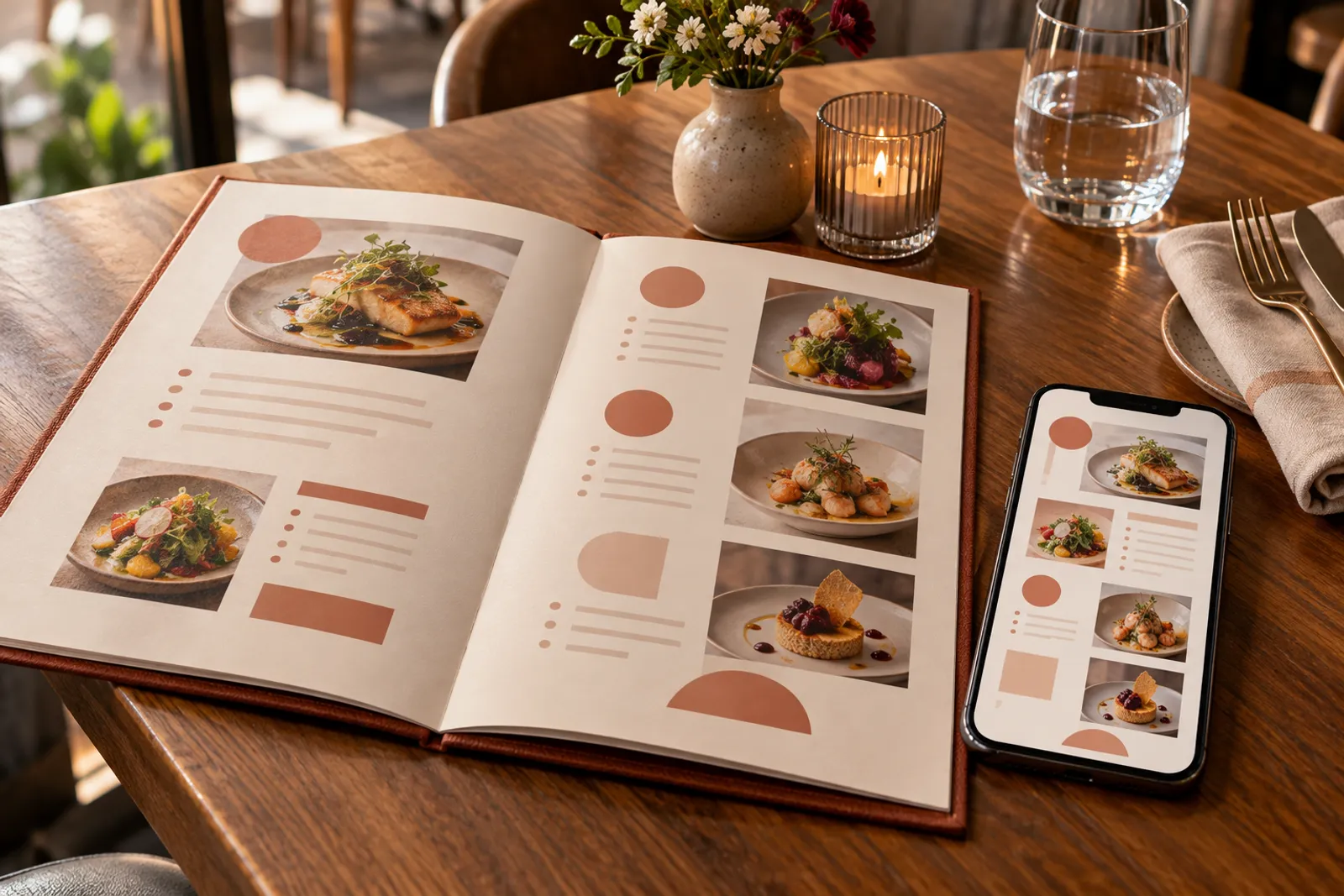
Going digital doesn’t have to mean dropping paper completely. Many guests — especially older ones or those without their phone — still prefer a physical menu. A balanced approach: the digital menu as the main, always-updated source, plus a few simplified printed menus at the bar for anyone who asks.
- table stands with the QR code and a clear message (“Menu with dishes in 3D — scan with your camera”);
- a poster or sticker in the window for people who choose before walking in;
- a few spare printed menus with the core dishes;
- the QR code on the bill and on reservation cards.
For table stands, stickers and posters that survive cleaning, use an online print shop for stickers and promotional materials; pick matte materials so light doesn’t reflect over the code.
Step 1: the menu inventory
Before you open any platform, make a full inventory of the menu in a simple table: category, name, short description, weight, price, ingredients, allergens, dietary labels (vegetarian, vegan, gluten-free), availability (all day, lunch only, weekends only). The inventory forces you to clarify things the printed menu left vague.
Use the moment for a clean-up. Dishes that rarely sell, those that load the kitchen without bringing margin, or those that overlap can go. A shorter digital menu is easier to browse on a phone. For a structured analysis of your dishes, use the method in the menu engineering guide.
| Field | Example | Why it matters |
|---|---|---|
| Name | Aged cheddar burger | The first thing read in the list |
| Description | Brioche bun, 180 g beef, cheddar, caramelised onion | Helps guests choose without asking |
| Price and weight | €12 · 350 g | Required and checked |
| Allergens | gluten, milk, egg, mustard | Correct information, required by law |
| Availability | 12:00–22:00 | Avoids orders for unavailable items |
| Visual format | 3D / photo / text | Decides where you invest |
Step 2: structure for the phone
A menu printed on two A3 pages doesn’t move well onto a phone screen. On mobile, guests scroll vertically and jump between categories. A few structure rules:
- Few, clear categories: 6–10 categories are usually enough (Breakfast, Starters, Mains, Desserts, Drinks).
- Order by behaviour: put the most-ordered categories first, not the historical order of the printed menu.
- Star dishes on top: in each category, the first two or three items get the most views.
- Short descriptions: one sentence, two at most; details appear when the guest opens the item.
Step 3: photo, 3D or text only
Not every item needs an image. Standard drinks, sides or sauces can stay as text. Star dishes, large portions, desserts and anything hard to picture from a description gain a lot from an image — and even more from a 3D model the guest can rotate and see at real size on the table.
The differences between a photo, a scanned 3D model and an AI-made model are explained in the photo vs 3D vs AI comparison, and which dishes deserve 3D first is in the guide to choosing dishes for 3D. The practical rule: start with 3–5 dishes in 3D and expand once you see how guests react.
Step 4: allergens and mandatory information
Allergen information is mandatory for food sold unpackaged in the EU, including in restaurants. The digital menu is the ideal place: each item can carry its own allergen list, and guests see it before ordering. Check every recipe with the head chef and update the list whenever an ingredient changes.
Details on the 14 EU allergens and how to display them correctly are in the guide to allergens in a digital menu. Keep a printed version or a sheet at the bar for guests who ask for the information on paper.
Step 5: translations for tourists
If you have foreign guests, translating the menu is one of the biggest improvements digital brings. In Menu3D, names, descriptions and categories can be translated into several languages, and the menu opens in the chosen language. Check translations with a native speaker: traditional dish names need a short explanation, not a word-for-word translation.
- keep the original name for traditional dishes and add the explanation (“Sarmale — cabbage rolls with meat and rice”);
- translate allergens and dietary labels, not just the names;
- check prices and the currency shown.
Step 6: QR codes and placement
Decide whether you use one code for the whole menu or one code per table. A single code is enough for browsing; table codes are needed if you want table ordering. You can have both: the menu code in the window and on social media, table codes in the dining room.
Size, contrast, material and placement decide whether people use the code. All the practical details — from code size to testing with different phones — are in the complete QR menu guide.
Step 7: table ordering (optional)
Table ordering isn’t mandatory; many restaurants use the digital menu only for browsing. If you turn it on, guests put items in the basket and send the order, which appears live in the dashboard with the table number. Kitchen hours, breaks and sold-out items are respected automatically, and payment happens at the restaurant.
Start with a test on a few tables on a quieter day. Agree clearly who watches the dashboard, how orders are confirmed and what happens when an item runs out during service.
Step 8: the team
A digital menu changes a few gestures on the floor. Waiters need to know how to explain the code, help guests who can’t scan and, if you have 3D dishes, show the “See it on the table” feature. A 15-minute briefing before launch and a sheet with answers to common questions are enough. For the augmented reality part, we have a dedicated guide for waiters.
Step 9: launch and the first week
- Test every printed code with an iPhone and an Android phone, on mobile data.
- Check prices, allergens and translations once more, with someone other than the person who entered them.
- Announce the change on social media and in the venue (“Our menu now has dishes in 3D”).
- In the first week, note guests’ questions and scanning problems.
- At the end of the week, fix unclear descriptions and move codes that are hard to see.
What switching to a digital menu costs
Costs have three parts: the digital menu platform (subscription or free, depending on the solution), printed materials for the codes (stands, stickers) and the team’s time for the inventory, photos or 3D scans. Most of it is time, concentrated in the first days.
With Menu3D, the first 3D dish costs €1 and includes 30 days of Menu3D, so you see the result on your own dish before subscribing. Then you choose a monthly or yearly plan depending on how many dishes you want in 3D and how many locations you have; items with a photo or text only are unlimited. Current prices are on the pricing section.
| Component | What it covers | When it applies |
|---|---|---|
| Platform | Menu, dashboard, QR codes, 3D, ordering | Monthly or yearly |
| Printing | Table stands, stickers, poster | Once, then when worn |
| Content | Descriptions, allergens, translations, scans | At the start, then on changes |
| Training | Briefing for waiters | Once, then for new hires |
Common mistakes
- A scanned PDF put online: hard to read on a phone, impossible to update quickly;
- Small or glossy QR codes hidden under salt and napkins;
- Different prices between the printed and the digital menu;
- Missing allergens or allergens not updated after a recipe change;
- No option for guests who don’t use a phone;
- Launching without briefing the team.
A two-week switch plan
If you want a concrete schedule, here is what the switch looks like for a restaurant with 60–80 items on the menu, without pausing service. It can be compressed into a week with someone dedicated to it, or stretched over a month if the team is small.
| Days | What you do | Who |
|---|---|---|
| 1–2 | Full menu inventory and dish clean-up | Manager + head chef |
| 3 | Category structure and item order | Manager |
| 4–5 | Entering items, prices and allergens in the dashboard | Manager or a trusted waiter |
| 6 | Translations and checking them | Someone who speaks the language |
| 7–8 | The first 3–5 3D scans of star dishes | Chef + someone with a phone |
| 9 | QR codes: generating, printing, mounting | Manager |
| 10 | Team briefing and testing with different phones | The whole team |
| 11–14 | Launch, observation and first-week fixes | Manager |
Delays most often come from allergens and translations, because they depend on other people. Start them on day one, in parallel with the inventory.
What guests say and how to answer
Most guests adapt quickly to a digital menu, especially when it is fast and easy to read. A few reactions come up in almost every restaurant, though, and the team should have answers ready:
- “I don’t have my phone” — offer the spare printed menu or the venue phone, without comment;
- “My camera won’t read it” — help with distance (20–30 cm) and check for glare on the code;
- “I’d rather order from the waiter” — perfect; table ordering is an option, not an obligation;
- “What does the 3D label mean?” — show a rotating dish and the “See it on the table” feature; guests usually try the next dish on their own.
Note reactions during the first weeks. If many guests don’t notice the code, it’s a placement problem; if they scan it but give up, it’s about speed or menu structure.
How to measure whether the switch paid off
After a month, compare a few things with the month before: average time from sitting down to ordering (at busy hours), sales of star dishes and of those shown in 3D, the number of repetitive questions waiters get and the reprint costs you avoided. Not everything can be measured precisely, but the trend shows.
If you turned on table ordering, also track the share of orders sent from the menu out of all orders. A share that rises slowly week after week shows guests are getting used to the system.
Frequently asked questions
Do I have to drop the printed menu completely?
No. Many restaurants keep a few simplified printed menus for guests who prefer them, while the digital menu becomes the main, always-updated source.
Do guests need an app?
No. The menu opens in the browser after scanning the QR code with the phone camera, and augmented reality also works from the browser on compatible phones.
How long does the switch take?
For a restaurant with a typical menu, the inventory and entering the items usually take one or two working days. 3D scans can be added gradually, starting with the star dishes.
Can I change prices without reprinting the codes?
Yes. The QR code points to the menu address; prices, items and 3D models change from the dashboard, and the code stays the same.
Can the digital menu be translated?
Yes. In Menu3D, names, descriptions and categories can have translations in several languages, and guests pick the language in the menu.
Read next
QR code menu for restaurants: a complete guide (printing, placement, tables and ordering)
How to make a QR menu that actually gets used: which code to choose (menu or table), how big to print it, where to put it, how to test it and how to add table ordering.
Read → 15 October 2026 · 12 min readMenu engineering: how to grow sales with your menu’s structure and presentation
Menu engineering made simple: how to calculate dish margin and popularity, the four-zone matrix and how to apply the results in your digital menu, step by step.
Read → 15 October 2026 · 6 min readWhich dishes to put in 3D on your menu (and which to keep as photo or text)
How to choose the dishes that deserve a 3D model in your digital menu: practical criteria, examples by venue type and which items can stay as photo or text.
Read →Try it on your own dish
The first 3D dish costs €1 and includes 30 days of Menu3D.